UniFi Lighting

Simplify building management, reduce energy costs, and enhance any environment with intelligent, networkUniFi lighting from Metropark.

UniFi LED Networked Lighting

Overview

Powered by native 802.3at PoE+ technology, the UniFi LED Panel from Metropark is an energy-efficient ceiling light that provides adjustable, high-efficiency indoor lighting. Utilizing long-lasting LEDs that provide over 50,000+ hours of luminance, the LED panel requires very little maintenance and can be easily managed by the UniFi LED Controller and UniFi LED app using your hand-held iOS or Android device.

Features

System Requirements

Before you get started, ensure you have the following:

UniFi LED Panel

802.3at-compliant network switch

UniFi LED mobile app software

Mobile device: iOS 10 or Android 5.0

UniFi LED Controller software

Computer: UniFi Application Server (UAS) 0.5.0, Ubuntu 16.04 LTS (Xenial Xerus) 64-bit or Debian 9 64-bit

Web browser

Google Chrome (Other browsers may have limited functionality.)

UniFi Dimmer Switch, model UDIM-AT or UDIM-AC

Hardware Overview

  • Flashing White: Initializing.
  • Steady White: System ready.
  • Steady Blue: Adopted by
  • LED Controller.
  • Alternating White/Blue:
  • Firmware upgrade is taking place.

1

LED

Flashing White
Initializing.
Steady White
System ready.
Steady Blue
Adopted by LED Controller.
Alternating White/Blue
Firmware upgrade is taking place.

2

PoE+

The PoE+ port is a 10/100 Ethernet port used to connect the power and should be connected to the LAN. Power is provided by a UniFi Switch with 802.3at PoE+.

Note: The PoE+ port requires 25W of power, which can be supplied by an 802.3at-compliant UniFi Switch.

3

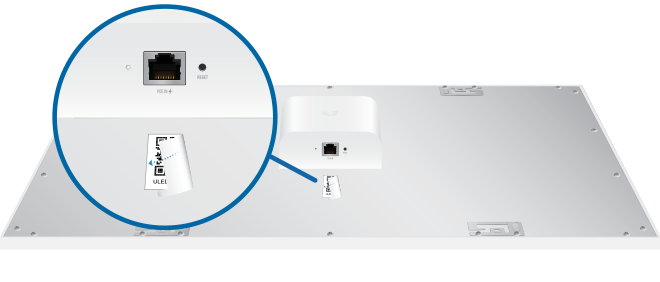
MAC Sticker

Used to scan the MAC address. For details, refer to “Quick Setup”.

4

Reset

The Reset button serves two functions:

  • Restart Press and release the Reset button quickly.
  • Restore to Factory Default Settings Press and hold the Reset button for more than five seconds.

Hardware Installation

To install the UniFi LED Panel, here are three simple steps:

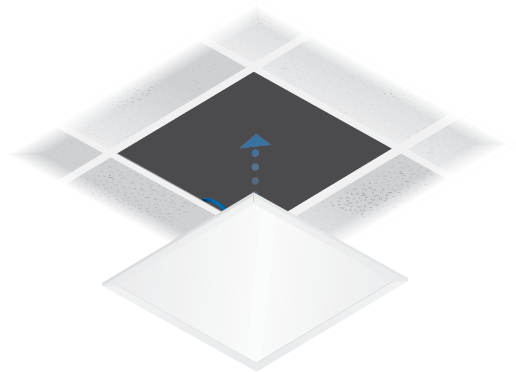
1. Mount the Panel

Securely attach the UniFi LED Panel to your ceiling or mounting surface using the provided hardware. Ensure the location has access to power and a network connection.

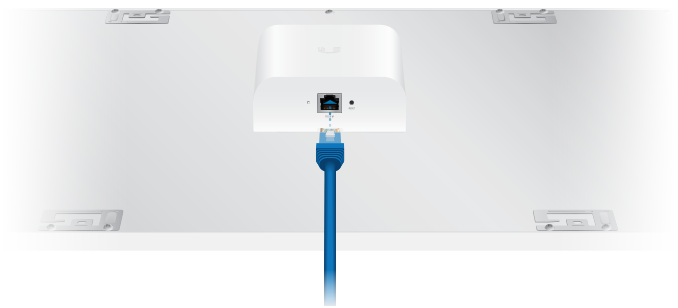
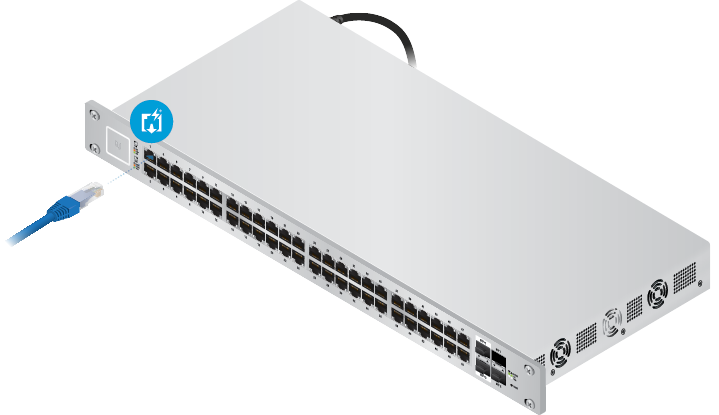
2. Connect to Power and Network

Plug the panel into a standard power outlet. Connect a network cable (Ethernet) from the panel to your UniFi network switch or another PoE-enabled port.

3. Adopt and Configure

Log in to your UniFi controller software. In the device list, you'll see the new LED Panel waiting to be "adopted." Click the adopt button to add it to your network and begin configuring its settings, such as brightness, schedules, and colors.

Configuring the UniFi LED Panel

Follow the instructions for the software you wish to use:

UniFi LED App

Follow the on-screen instructions to configure the UniFi LED Panel.

UniFi LED Controller Software

  1. Install the latest version of the UniFi LED Controller software on a computer on the same Layer 2 network as the UniFi LED Panel:
    • Ubuntu users Download the software from ui.com/download/unifi-led
    • UAS users Install the software using the UAS management console.
  2. Launch a web browser and go to https://localhost:20443
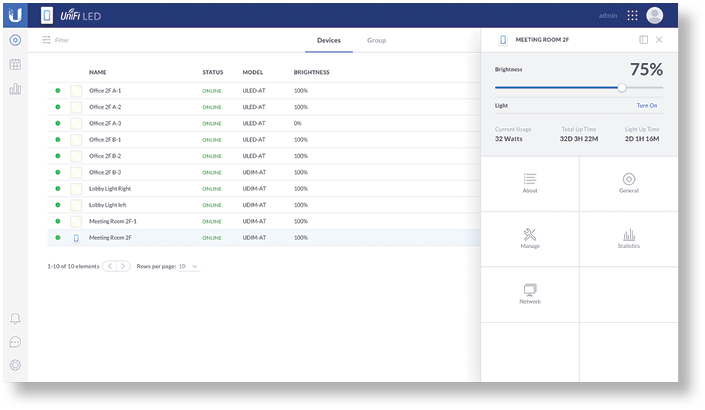
  3. The UniFi LED Controller will appear, allowing you to configure the UniFi LED Panel, as well as customize other settings. For additional details on the UniFi LED Controller, refer to the documentation available at: ui.com/download/unifi

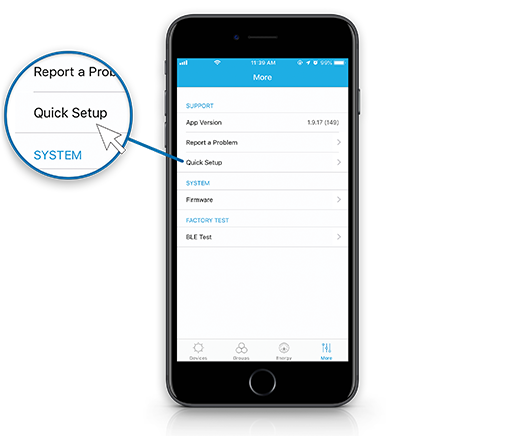
Quick Setup

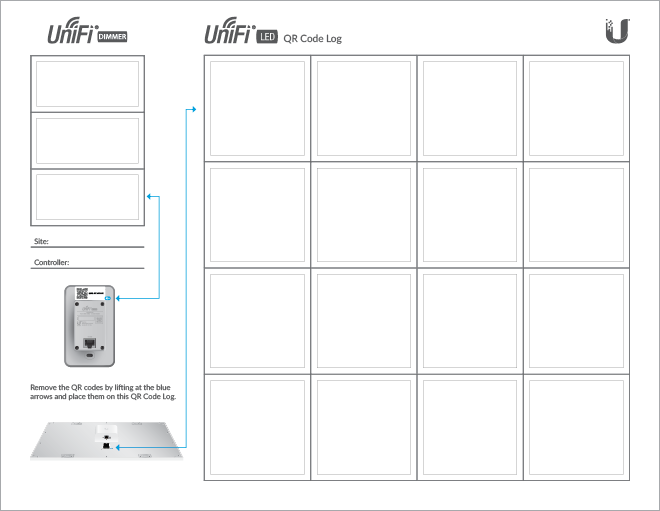
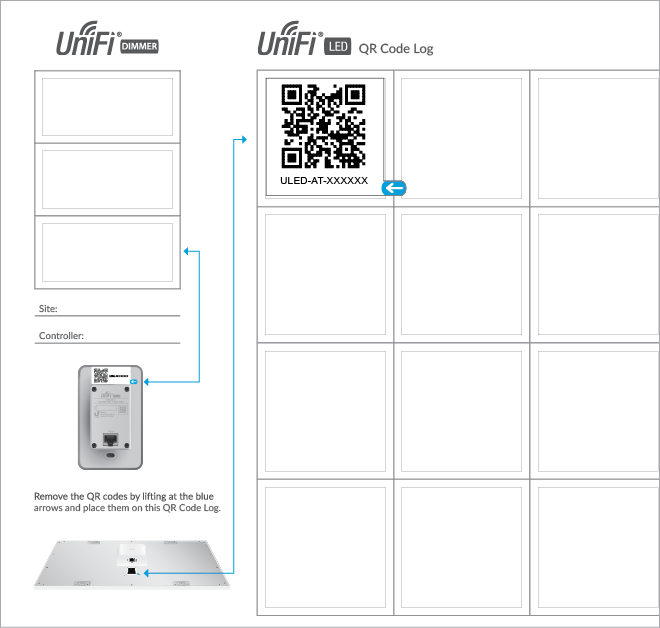
This section describes the Quick Setup procedure for installations with large numbers of UniFi LED Panels and Dimmer Switches. The Quick Setup requires using the UniFi LED app along with a QR Code Log that you create. Each UniFi LED Panel or Dimmer Switch has a removable MAC Sticker on its reverse side; this has a QR code used to scan the device’s MAC address. The Quick Setup consists of these steps:
  • Create the QR Code Log
  • Install the LED Panels and Dimmer Switches
  • Scan the QR codes

Install and Scan

Install the devices and use the UniFi LED app to scan the QR codes on the log sheet to add the devices.

Note: For smaller installations, you can also use the UniFi LED app’s Locate function to identify and assign individual LED Panels to their groups.

Create the QR Code Log

  1. Download the QR Code Log template at: ubnt.link/QR-Code-Log

2. Print out as many copies as needed (each sheet can log up to 16 LED Panels and 3 Dimmer Switches).

3. Fill in the Site (such as “1st Floor Meeting Room”) and Controller (such as “UniFi LED Controller”) on each sheet.

Install the LED Panels and Dimmer Switches

1. Mount the Panel

Securely attach the UniFi LED Panel to your ceiling or mounting surface using the provided hardware. Ensure the location has access to power and a network connection.

2. Connect to Power and Network

Plug the panel into a standard power outlet and connect an Ethernet cable from the panel to your UniFi network switch.

Scan the QR Codes

1. Launch the App

Open the UniFi LED app on your device.

2. Scan the QR Code

Use the app to scan the QR codes found on your QR Code Log sheet. This will automatically add each device to your system.

3. Use Locate for Smaller Jobs

If you're working on a smaller installation, you can use the app's Locate function as an alternative to scanning codes. This will help you identify and assign each individual LED Panel to its correct group.

Specifications

ULED-AT

  • Dimensions: 602 x 602 x 56.7 mm (23.7 x 23.7 x 2.23″)
  • Weight: 4.5 kg (9.92 lb)
  • Networking Interface: 10/100 Mbps Ethernet Port
  • Connectivity: Bluetooth 4.1
  • Buttons: Reset
  • LEDs: Status
  • Power Method: 802.3at PoE+
  • Supported Voltage Range: Standard PoE+ 42.5-57.0V
  • Max. Power Consumption: 25.5W
  • Mounting: Standard T-Grid
  • Operating Temperature: 0 to 40° C (32 to 104° F)
  • Certifications: FCC, IC

Lighting

  • Initial Delivered Luminance (Max.): 2300 lm
  • Efficacy: 100 lm/W*
  • CCT: 4,000 K
  • L80: > 50,000 hrs
  • CRI: > 80
  • Beam Angle: 114°
  • Brightness Control: 10-100% Dimming
  • Environment: Indoor Dry Location

Safety Notices

  1. Read, follow, and keep these instructions.
  2. Heed all warnings.
  3. Only use attachments/accessories specified by the manufacturer.

WARNING

Do not use this product in location that can be submerged by water.

WARNING

Avoid using this product during an electrical storm. There may be a remote risk of electric shock from lightning.

Electrical Safety Information

  1. Compliance is required with respect to voltage, frequency, and current requirements indicated on the manufacturer’s label. Connection to a different power source than those specified may result in improper operation, damage to the equipment or pose a fire hazard if the limitations are not followed.
  2. There are no operator serviceable parts inside this equipment. Service should be provided only by a qualified service technician.

Limited Warranty

ui.com/support/warranty
The limited warranty requires the use of arbitration to resolve disputes on an individual basis, and, where applicable, specify arbitration instead of jury trials or class actions.

Compliance

FCC

Changes or modifications not expressly approved by the party responsible for compliance could void the user’s authority to operate the equipment.
This device complies with Part 15 of the FCC Rules. Operation is subject to the following two conditions.

  1. This device may not cause harmful interference, and
  2. This device must accept any interference received, including interference that may cause undesired operation.

This equipment has been tested and found to comply with the limits for a Class A digital device, pursuant to part 15 of the FCC Rules. These limits are designed to provide reasonable protection against harmful interference when the equipment is operated in a commercial environment. This equipment generates, uses, and can radiate radio frequency energy and, if not installed and used in accordance with the instruction manual, may cause harmful interference to radio communications. Operations of this equipment in a residential area is likely to cause harmful interference in which case the user will be required to correct the interference at his own expense.

This radio transmitter has been approved by FCC.

IMPORTANT NOTE

Radiation Exposure Statement

  • This equipment complies with radiation exposure limits set forth for an uncontrolled environment.
  • This equipment should be installed and operated with minimum distance 20 cm between the radiator and your body.
  • This transmitter must not be co-located or operating in conjunction with any other antenna or transmitter.

Schedule Appointment with Metropark

Fill out the form below, and we will be in touch shortly.